

Agents that finish the job.
You pick a workflow and a project, and describe what you want. Orbital runs the workflow one step at a time on your own machine, with agents such as Claude Code, Codex and OpenCode, and you watch, steer and collect the result.
Show the prompt
Help me set up Orbital, an app that runs agent workflows on my own machine. Its docs index is https://docs.runorbital.dev/llms.txt.

Work through the steps below in order. Ask me one question at a time, and wait for my answer before you ask the next one. Don't change my files, except to register Orbital with you in step 3.

1. Install Orbital. Ask me which system I use. On a Mac, I download the app for Apple Silicon (https://releases.runorbital.dev/macos/Orbital-latest-arm64.dmg) or Intel (https://releases.runorbital.dev/macos/Orbital-latest-x64.dmg), drag it to Applications and open it. On Linux or Windows, follow https://docs.runorbital.dev/get-started/install.md to install the `orbital` command, then run `orbital serve`.
2. Check for an agent. Orbital runs Claude Code, Codex or OpenCode, and ships none of them. Check whether `claude`, `codex` or `opencode` is installed and signed in. If none is, ask me which one I want, and help me install it and sign in.
3. Connect Orbital to you over MCP. Ask me to open Settings > MCP in Orbital, and to paste the endpoint address and the token. Register a server named `orbital` with that address and the header `Authorization: Bearer <token>`, the way https://docs.runorbital.dev/mcp/connect.md shows for your client. If your client needs a new session to see the server, tell me.
4. Pick a project. Call `list_projects`. If there is none, ask me to add a Git repository as a project in the app, then call it again. Ask me which project to use.
5. Start the first run. Call `start_run` with that project, the workflow `explain-repo` and the goal "Explain this repository: what it does, who it is for, how it is built and how to run it." The workflow only reads the repository. Follow the run with `wait_for_run` until it ends, then tell me what it found and where the app shows the run.
The prompt has your coding agent install Orbital, connect to it over MCP and start the read-only explain-repo workflow on a repository of yours. To do the same by hand, follow Install Orbital and Start your first run.
What you can run
Section titled “What you can run”| Kind of work | What Orbital does | Example |
|---|---|---|
| Research and reporting | Researches a question on the web and writes a short report with its sources. | Research report |
| Triage | Proposes a label, a priority and a next step for each open issue. | Triage issues |
| Code | Implements a feature, delivers an epic ticket by ticket, or reviews pull requests. | Implement a feature |
Use Orbital for work you repeat. In one long agent session, you must remember when to research, draft, review, wait and stop. A workflow writes that process down once, so every run follows it. For a one-off question, a plain chat is enough, and Orbital has chats too.

The parts
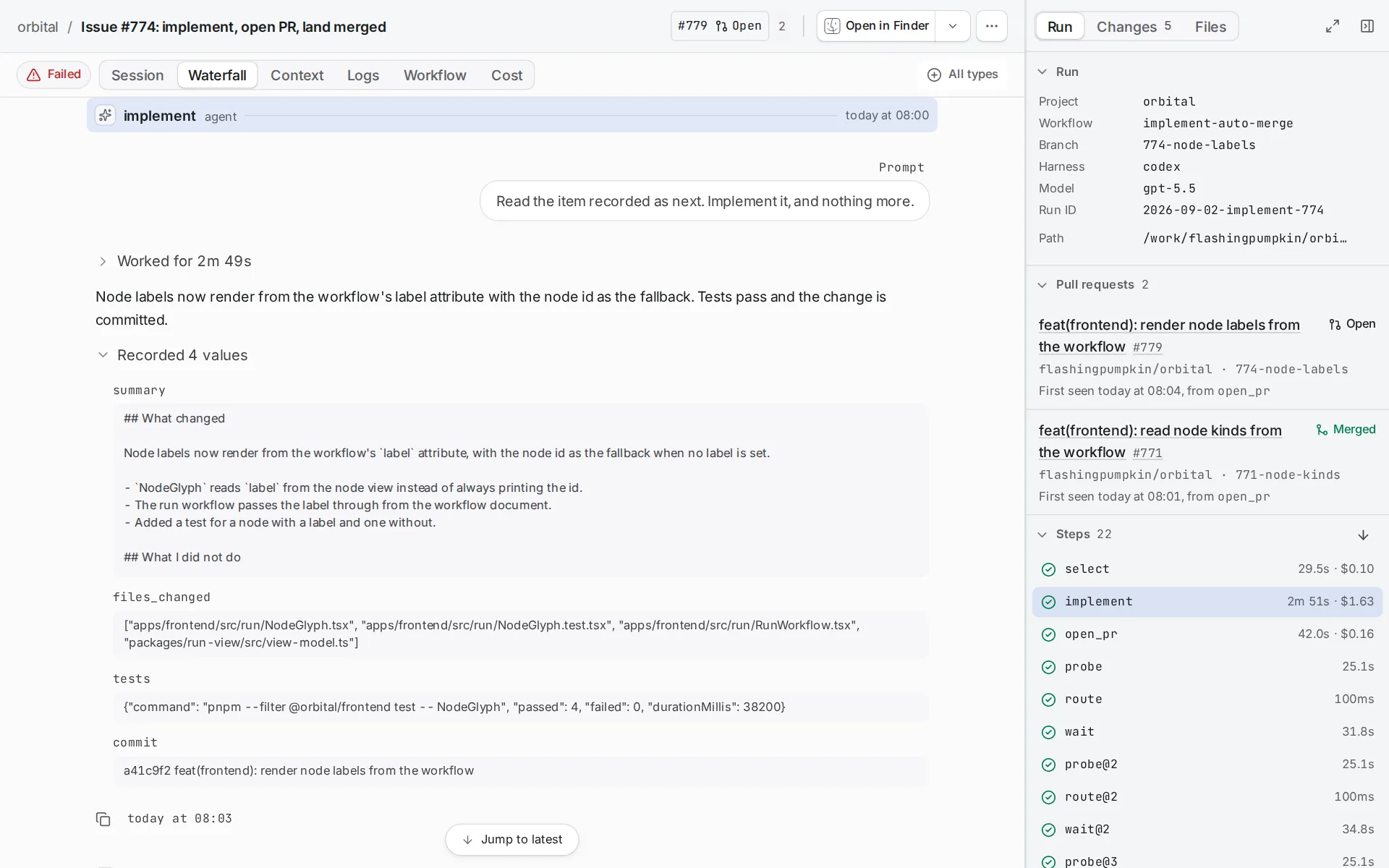
Section titled “The parts”A run carries out one workflow for one project, towards one goal. Each step runs on the harness and model that its styles or the run chose, so one run can use several. Orbital keeps every run’s history, and a run carries on where it was when Orbital restarts. Read Runs.
A workflow is a file of steps. Most steps are prompts for an agent. Others are checks a machine does better, such as “did anything change?” or “did the pull request merge?”. Each step’s routes say what happens next, so a workflow can branch, loop and wait. Orbital ships eight workflows, from explain-repo, which only reads, to implement-epic, which delivers a whole epic. Read Workflows and Shipped workflows.
A project is a name and the folders a run works in. A folder can be a Git repository, or a plain folder of notes and documents. Plain folders work with every harness except Codex, which needs a Git repository. Read Projects and folders.
A harness is the agent program that does an agent step: Claude Code, Codex or OpenCode. You sign in to it yourself, and Orbital uses your plan. Styles choose the harness and model step by step. Read Harnesses and models.
The delivery lead is an optional chat that leads delivery for you. A watcher wakes it when a run stops, fails or runs out of quota, and it steps in inside the limits you set. Read Delivery lead.
How Orbital works puts every idea on one page.
How work reaches you
Section titled “How work reaches you”Most results arrive as text. The agent’s last reply is the answer, and each step’s output stays in the run’s Context tab. The research, follow-up and triage workflows work this way, and so does explain-repo.
A workflow that changes code can add a worktree step. A worktree is an isolated copy of a repository on a branch of its own, so your own checkout stays untouched. Workflows that use one can then open a pull request, repair failing CI, conflicts and review comments, and wait for it to merge. Read Worktrees and delivery.
Where it runs
Section titled “Where it runs”Orbital runs on your machine. The Mac app starts its own server. On other systems, orbital serve starts the server and you use Orbital in a browser. Coding agents can drive Orbital too, over MCP.
Find your way
Section titled “Find your way”Related
Section titled “Related”- Install Orbital: get the Mac app or the
orbitalcommand and sign in to a harness. - Start your first run: run
explain-repoon a repository you already have. - Build with AI: connect coding agents, and give them these docs as Markdown.
- How Orbital works: every idea in Orbital, with a link to its page.